Mac users need to complete some extra steps to enable screen-sharing in Zoom. Please do this in advance of your SOAR Appointment.
Step 1: ensure you have the correct Zoom app installed on your device.
If you are unable to install the Zoom app, you can access Zoom from a browser. Use the latest version of Chrome, Firefox, or Edge, since Safari will not allow you to share your screen.
Step 2: Grant permission for Zoom to share your screen.
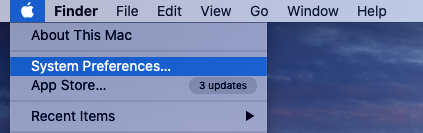
In the top left corner of your device, click the Apple logo, then select System Preferences.
Step 3: Choose Security & Privacy.
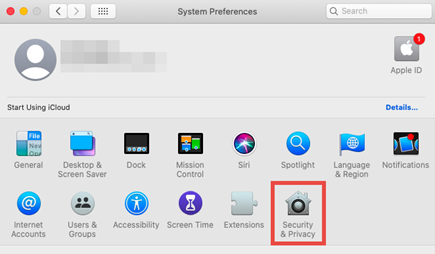
You may need to tap the lock icon at the bottom left corner of the window and enter your device password to unlock this setting.

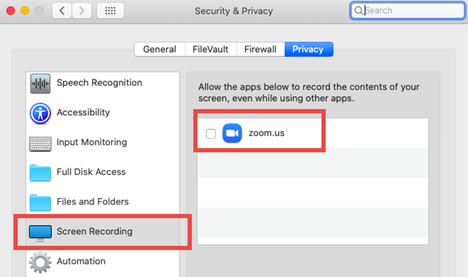
Step 4: Make sure you are in the Privacy Tab with Screen Recording highlighted on the left column. Your screen will not be recorded in your SOAR Appointment, but that is the setting that enables screen sharing. Turn on the Zoom.us option by clicking on the box next to zoom.us.
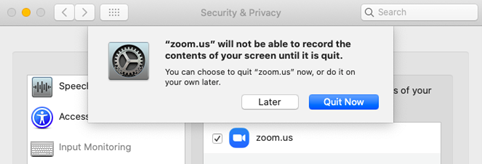
Step 5: You may be prompted to quit Zoom. You can click Later to start using the screen sharing right away, but it is recommended that you click Quit Now and restart Zoom at your earliest convenience.
You have now enabled screen sharing to be prepared for your SOAR Appointment! Please ensure you understand how to get into Zoom.