Step 1: Find the Zoom link for your appointment. The link is found in a few places:
- On the homepage of MyUI, look for the Advising Appointment tile.
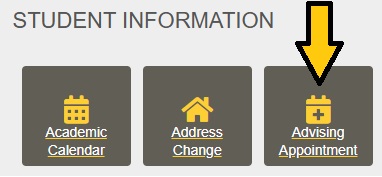
Then click the blue Details link next to your upcoming SOAR Appointment.

- There will be two emails in your University of Iowa email account:
- a confirmation email sent when you first scheduled your SOAR Appointment
- a reminder email sent about a day before SOAR Appointment
Both emails have a note from your advisor the Zoom link.

Step 2: Log into Zoom from the appointment link.
Click on the orange arrow, then enter your Hawk ID and password to log in.
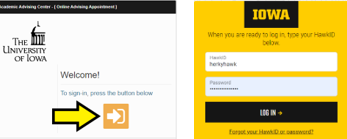
You may go through another orange or green button. Just keep clicking through all boxes as they appear.
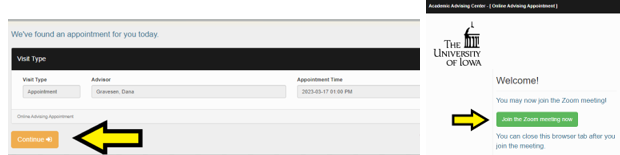
Zoom will open in your browser. Click Open Zoom Meetings to go to your advisor's waiting room. Your advisor will admit you as soon as they are ready.
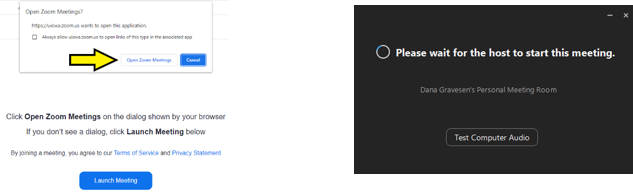
Step 3: After your advisor admits you, you'll see a preview of your camera to adjust your background or anything else you'd like before your advisor sees you. You'll see your advisor and they'll see you. Click Join with Computer Audio for you to hear each other.
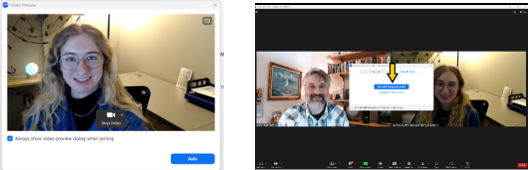
Step 4: When asked, share your screen with your academic advisor. To do that:
- Click the green Share Screen button at the bottom of the Zoom window.
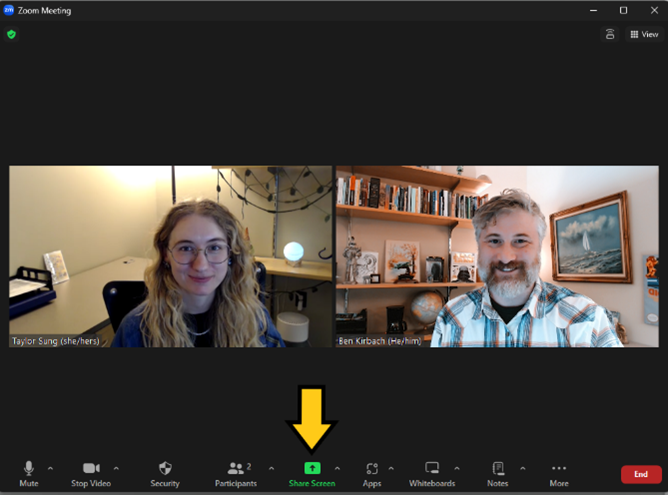
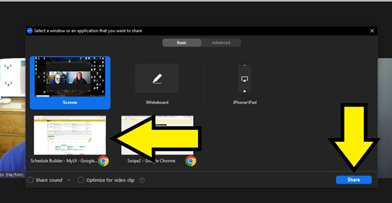
- You'll get a pop-up that shows any browsers and other programs you have running. Click on the page you wish to share, then click Share at the bottom.
- Use the controls at the top of the screen to change (new share), pause, and stop sharing your screen.
